
SC-500 DSPM Demo
Course: SC-500 · Format: Instructor-led walkthrough · Allow: 25–35 minutes
Live rehearsal: 21 November 2026
Begin with a question for the class: If an employee can open a sensitive SharePoint file, what can Copilot do with it, and how would we find out? Use the same demo library throughout. Start with access, compare the labels, examine the DLP policy, then run Copilot and check the audit trail.
Before class
Open Microsoft Purview and your private SC-500 DSPM Demo folder in SharePoint in separate Edge tabs. Use the signed-in instructor account with access to the private demo library, Purview, and Microsoft 365 Copilot. The five files contain fictional records or payment sandbox values. Use the saved screenshots when a report is still processing.
The original SC-500 exercise uses DSPM for AI (classic). This walkthrough follows the unified DSPM navigation. During the rehearsal, the posture page displayed a banner stating that both classic DSPM experiences would retire on 30 November 2026. Microsoft Learning exercise · Unified DSPM navigation
Select any screenshot to view it at full size.
1. Start with the tenant’s posture
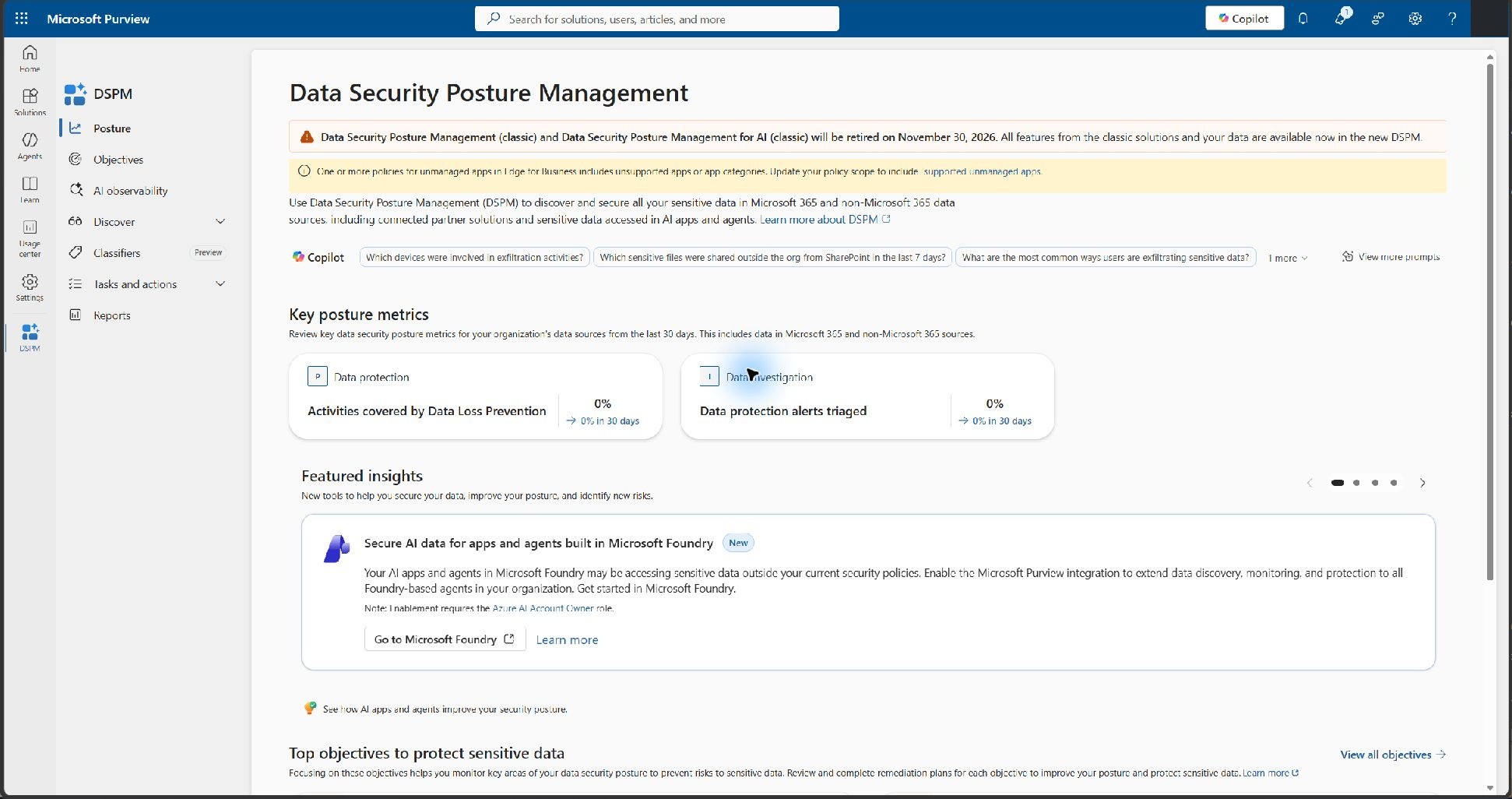
In Purview, open Solutions → DSPM → Posture. Point out Discover and the tenant-wide metrics. Expand Discover to show where Data risk assessments and Activity explorer live.
Say: “This page gives me the tenant-wide picture. To make a finding about a particular file, I need to follow it back to an assessment, a policy event, or a recorded interaction.”
2. Review SharePoint access and look for oversharing
- Open the SharePoint demo folder. Point out the contact documents, the service brief, the payment register, and the office-supplies control.
- On
Fictional Customer Contacts - Unlabeled.docx, open … → Manage access. Review people, groups, and links. Open Settings → Site permissions to inspect the groups behind inherited access, including Visitors. Look for broad grants such as Everyone except external users or an organization-wide link. - In Purview, open DSPM → Discover → Data risk assessments. If the default results are available, look for Purview Labels Demo and compare the assessment with what you saw in SharePoint.
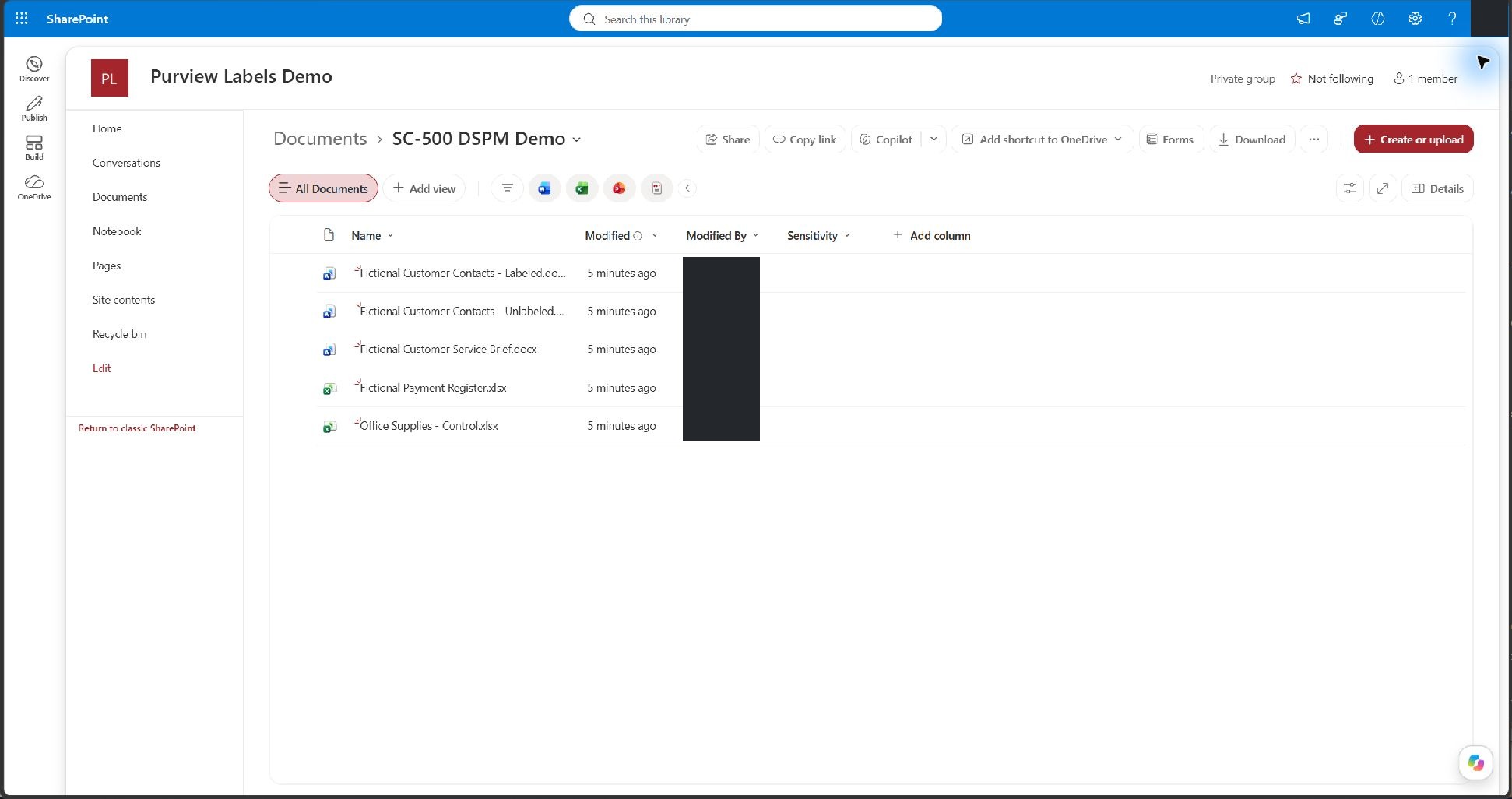
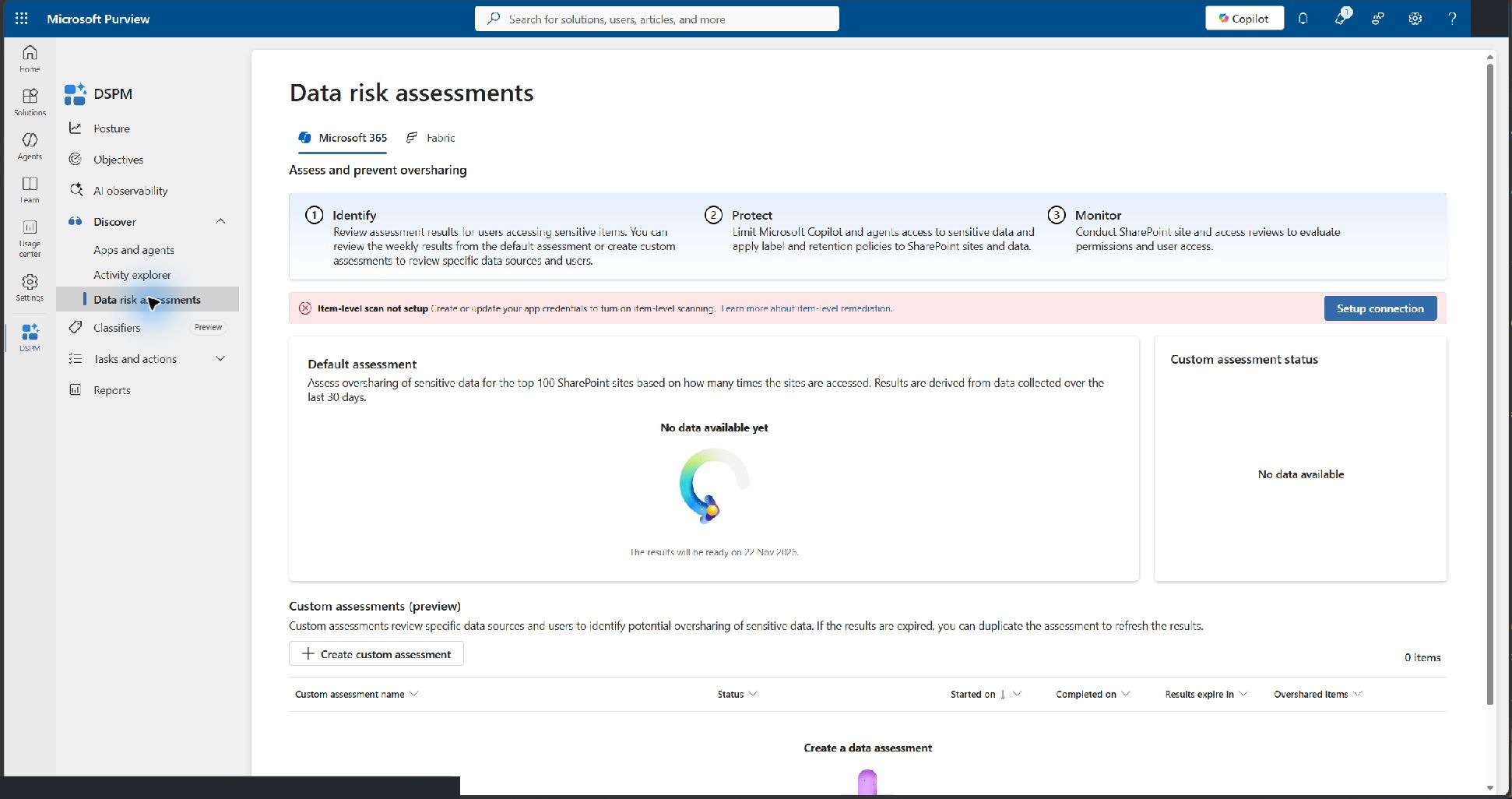
Rehearsal result. The Microsoft 365 group was private and had one direct member. File permissions showed inherited SharePoint groups and the folder permissions returned no sharing links. Effective access for a second account and membership of the site Visitors group were unverified. Purview reported that the default assessment results would be ready on 22 November 2026 and that item-level scanning was not set up. Present this segment as an access review unless you can confirm a broad grant. A private group can still have broader permissions on an individual file.
Ask: “If you find a tenant-wide group with read access to the contact records, who would you ask to confirm that access is justified?”
Answer: The site owner or SharePoint administrator. Record the scope, grant, and affected file before recommending a change.
3. Compare sensitivity labeling on identical content
- Open
Fictional Customer Contacts - Labeled.docxin Word for the web. Show Home → Sensitivity and the saved Secret info label. - Open
Fictional Customer Contacts - Unlabeled.docx. Show No Label and point out that the records match the first copy. - In Purview, look for file-level classification evidence in a populated DSPM assessment or the available classification views. If you find the file, identify the detected sensitive information type and confirm the label separately in Word.
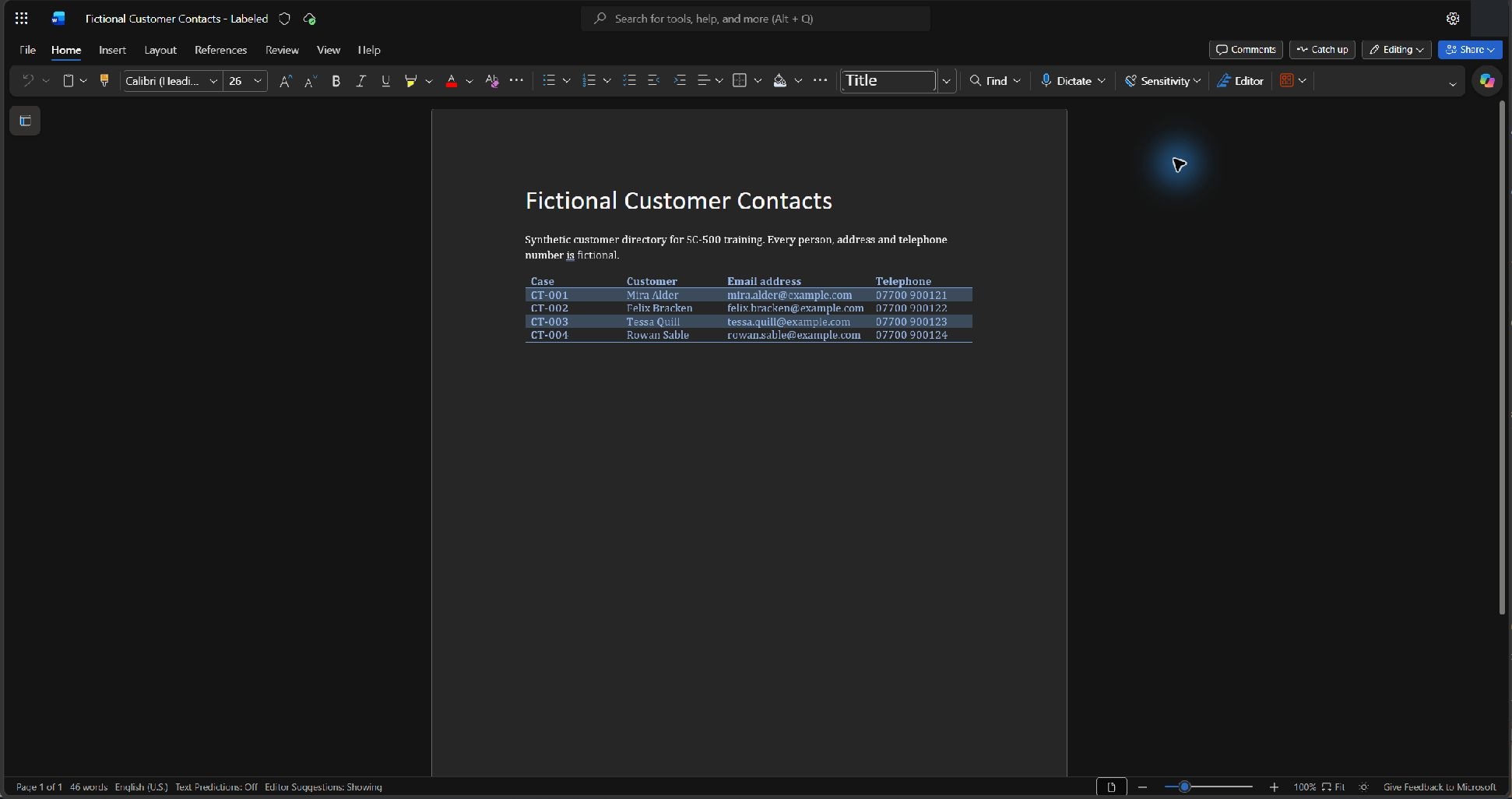
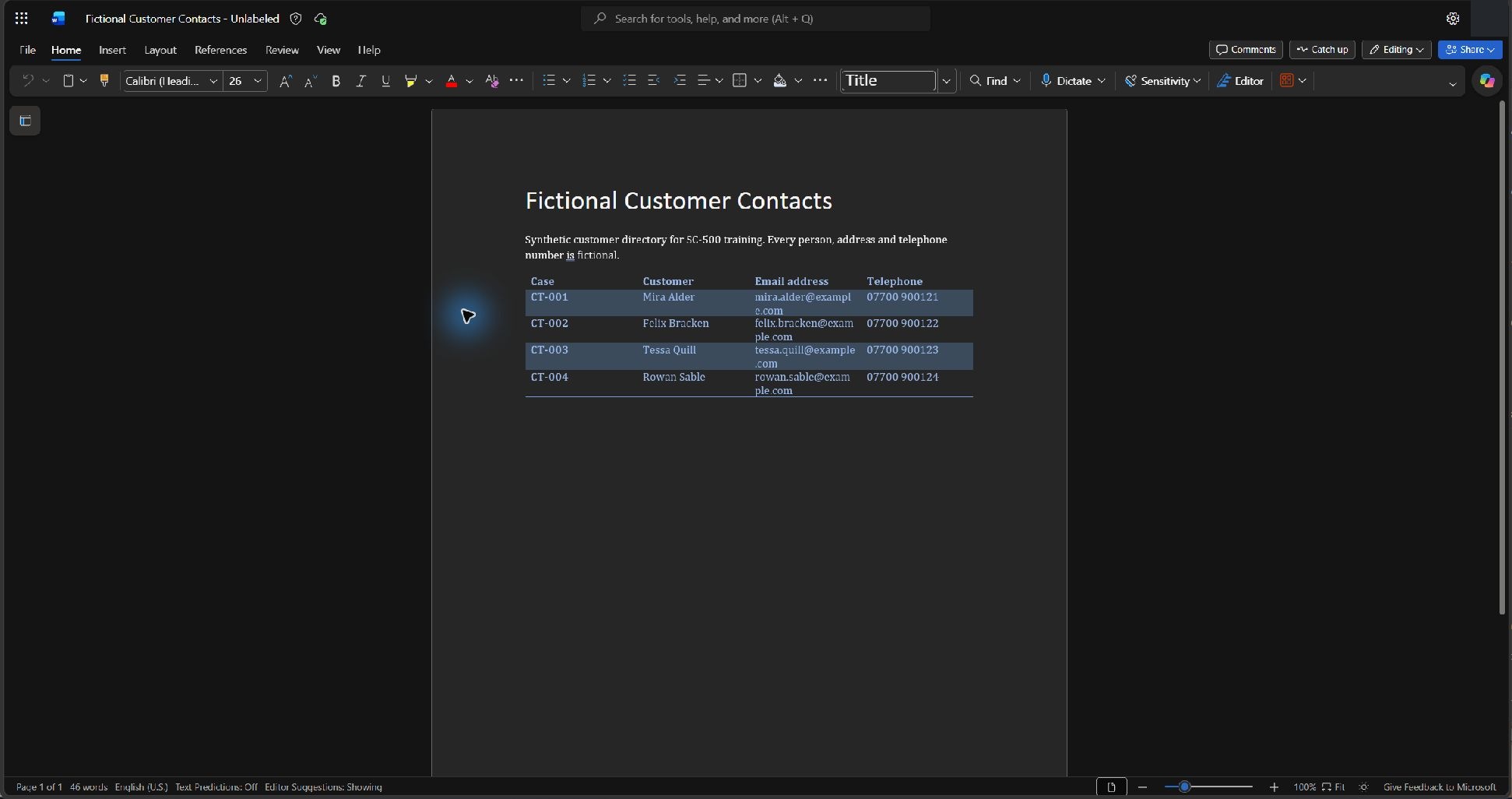
Rehearsal result. Word verified the label on both copies. Purview classification for these files was unverified. Explain that No Label establishes label state. A finding of unlabeled sensitive data also needs evidence that the content meets a classification criterion. When discussing what Secret info protects, check its configured settings before making claims about encryption or Copilot processing.
4. Compare a DLP candidate with a control
- Open
Fictional Payment Register.xlsxand show the Credit card number column. The records use payment sandbox values. - Open
Office Supplies - Control.xlsx. It uses a similar table with stock codes, categories, and quantities so you can compare two ordinary-looking workbooks under the same rule. - In Purview, open Data Loss Prevention → Policies. Explain the difference between On, Off, and In simulation. Before presenting a match, verify that the rule covers this SharePoint location and includes the Credit Card Number sensitive information type.
- In DSPM → Discover → Activity explorer, use the general activity view. Narrow to the rehearsal period and SharePoint, then look for each file. Open a matching event, if one appears, to show the policy, rule, and action.
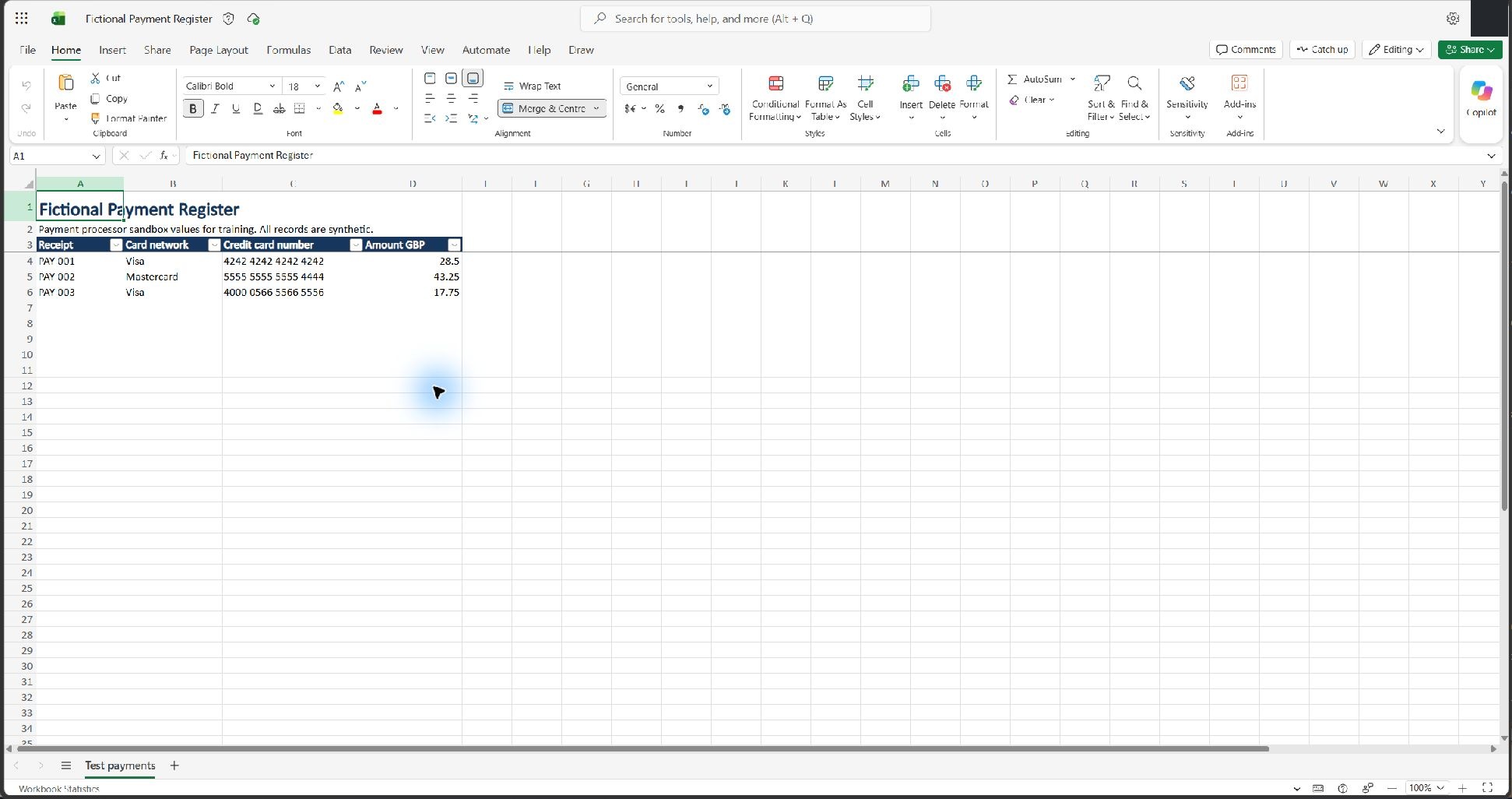
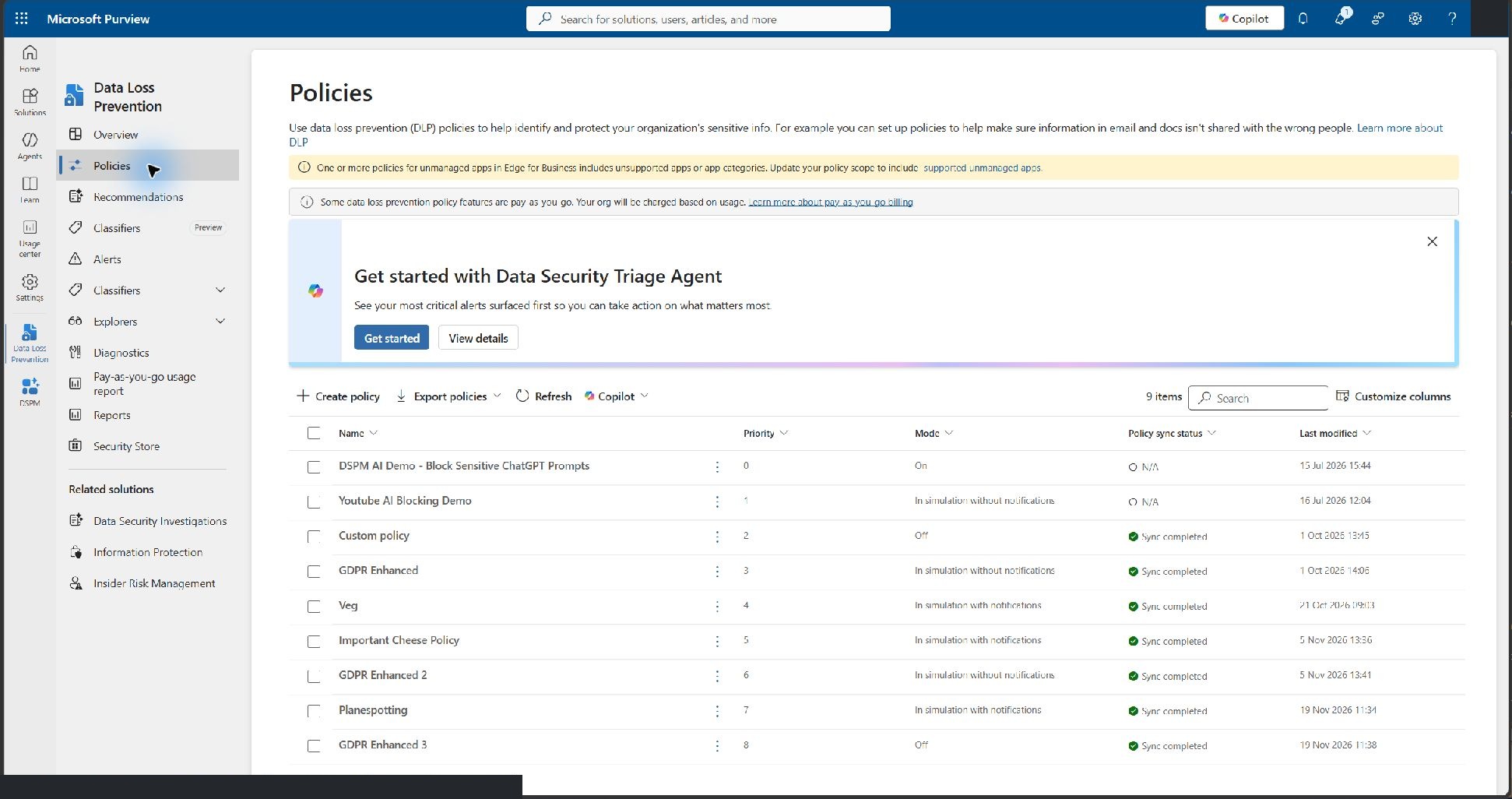
Rehearsal result. The portal showed GDPR Enhanced and GDPR Enhanced 2 in simulation without notifications. The screenshots establish the workbook content and policy modes. Site coverage and a match on the payment register remain unverified. Sandbox values can be excluded by classifiers. An empty activity view does not establish that the control file passed or that a rule took no action.
5. Run Copilot against the synthetic brief
-
Open
Fictional Customer Service Brief.docxin Word for the web. -
Select Chat with Copilot. Set the mode to Chat only and click inside the composer on the right.
-
Ask:
Using this document, what are the target and first review date for Project Lantern Kestrel? Cite the source document if available.
-
Compare the response with the open document. The expected target is close 84 percent of cases within two business days. The first review date is 26 January 2027.
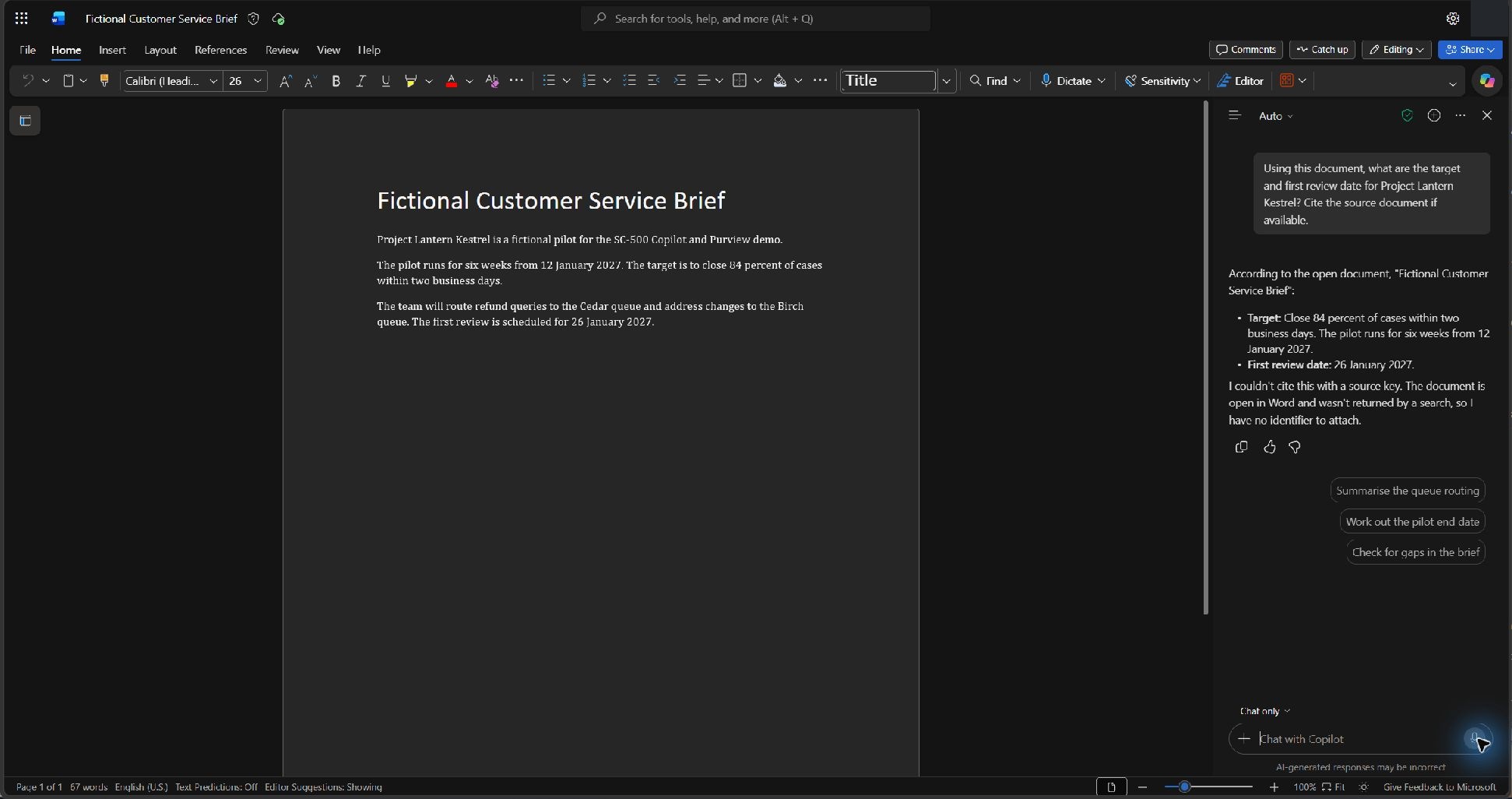
Rehearsal result. Copilot named the open document and returned both facts. It reported that it could not provide a standalone source citation because the file was already open in Word. Use this screen to demonstrate document-grounded assistance.
6. Look for the corresponding AI activity
- Return to DSPM → Discover → Activity explorer → AI activities.
- Set the UTC time window to include the run. Look for AI Interaction, the instructor account, and Word under the app context.
- Open the event and inspect Interaction details. If it exposes a file reference, confirm it points to the synthetic brief before using the event as evidence of this run.
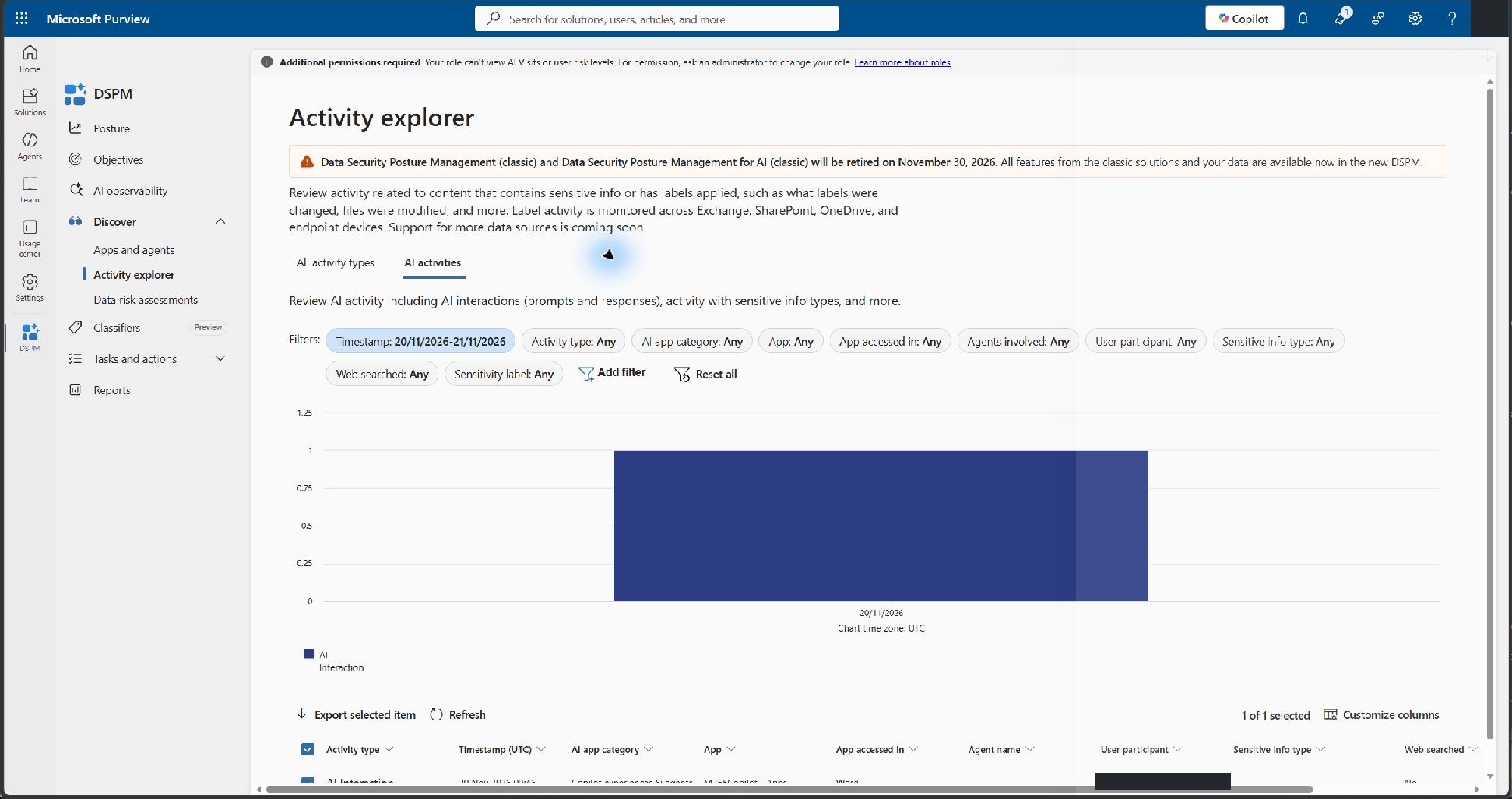
Rehearsal result. Purview showed an earlier Microsoft 365 Copilot interaction in Word from 20 November 2026 at 09:46 UTC. The new Lantern Kestrel event was not visible on refresh. Show the older row to explain how to find and inspect an event. Keep the Word screenshot as the evidence for the live Copilot response. Microsoft guidance on Copilot activity in Purview
Close with a finding and an owner
Ask the class to name the evidence they would attach to each handoff.
| Finding | Evidence to collect | Owner |
|---|---|---|
| SharePoint access is broader than required | Site or file, principal, access level, and why it exceeds the business need | Site owner or SharePoint administrator |
| Sensitive content lacks an appropriate label | File, detected information type, and confirmed label state | Information Protection |
| A DLP rule matched | File, rule, policy mode, and recorded action | DLP policy owner |
| Copilot used a sensitive file | Interaction time, app, account, and file reference where available | Security or audit team |
Finish on the distinction between what a user could access, what a policy detected, and what an AI interaction actually used. Each claim needs its own evidence.